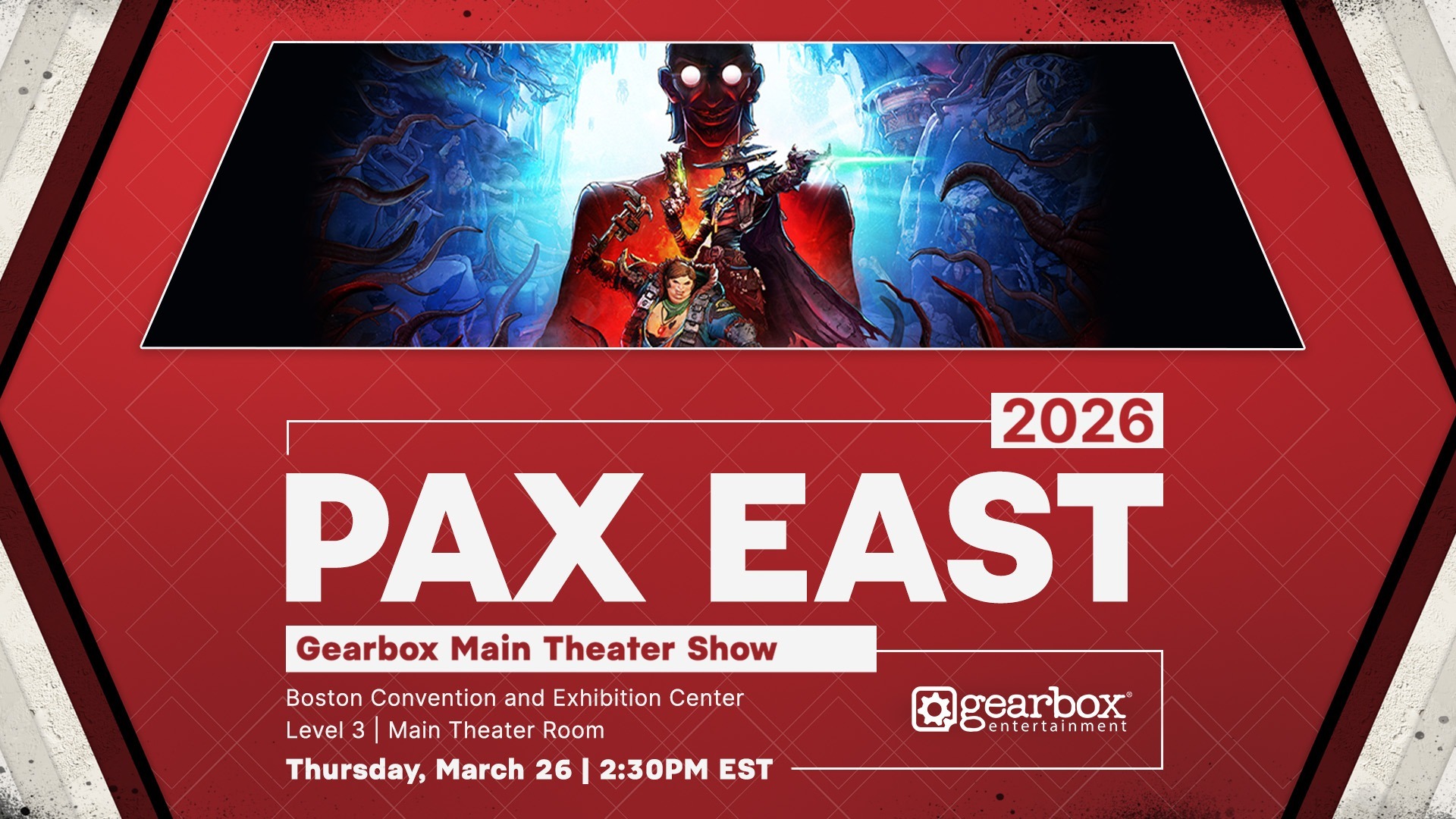
You've always made hunting Vaults on Kairos look good; now you can prove it to the world with Borderlands 4's new Photo Mode! Introduced as part of the January 29 Major Update, Photo Mode is available to all Borderlands 4 players, so you can capture mayhem-fueled moments or serene shots of Kairos' scenic beauty to share with your fellow Vault Hunters.
How to Access and Use Borderlands 4's Photo Mode
At any time during gameplay, you can access Photo Mode via a new button added to the pause menu. While Photo Mode is active, you can adjust the position of the camera using the standard movement controls. The Photo Mode UI has multiple tabs with a wide range of settings with different visual effects, which you can learn more about further below.
In single-player, going into Photo Mode will pause all the action by default, so you can freely dial in your ideal shot without missing the perfect moment. From there, you can unpause and pause the world as you see fit!
Photo Mode is also available in online multiplayer, with the caveat that the world won't pause while you're in Photo Mode.
Saving, Managing, and Sharing Your Photos
Once you've composed the shot you want, save your photo via your platform's default screenshot button:
- PC: F12, Print Screen, or Snipping Tool
- PS5: Share button
- Xbox Series X|S: Capture button
Please note that Photo Mode is only available during gameplay, and cannot be accessed during cutscenes. It's also not available in splitscreen play on consoles.
Any screenshots you take with Photo Mode won't be saved in Borderlands 4 itself, but via your platform's native image-sharing functionality. On Steam, for example, the pictures will be saved to whichever folder your Steam account saves screenshots by default. While viewing Borderlands 4 in your Steam library, you can browse the "Recordings and Screenshots" tab on the lower right to see your shots. While viewing a screenshot, you can right-click and select "Show on disk" to easily navigate to the file itself.
We always love seeing what you capture in-game, so be sure to tag @Borderlands on social media! You can also upload shots to the Screenshots section of the Borderlands 4 Steam Community hub!
Here's a comprehensive rundown of the settings you can adjust in Photo Mode via the UI, along with some illustrative examples:
Lens Settings
Go for a close-up shot or capture a wider view by adjusting the Field of View.
- Field of View: How much of your surroundings appears in the frame.
- Camera Roll: The rotation of the camera.


Depth of Field Settings
Create a blurring effect on the focal point, foreground, or background of your shot with these settings.
- Override Focus: On / Off
- Focus Distance
- Focus Region
- Focus Intensity


Screen Settings
Fine-tune the overall look and clarity of your shot using these straightforward settings.
- Brightness: Changes the overall lightness or darkness of the image.
- Contrast: Modifies the difference between the lightest point and the darkest point.
- Saturation: Changes the intensity of the image's colors.
- Gain: An alternative way to alter brightness and noise of an image.


Gameplay Settings
Adjust the lighting by shifting Time of Day, then manipulate how busy your shot looks by toggling players (including yourself), damage numbers, summons, and NPCs on or off. If the other Vault Hunters in your party keep moving into frame and photobombing your shots during multiplayer, you have the option to render all Vault Hunters invisible in your Photo Mode captures!
- Time of Day
- Players: On / Off
- Damage Numbers: On / Off
- Show Summons: On / Off
- Show NPCs: On / Off


Overlay Settings
Make your screenshot look official with a logo overlay or a filmic letterbox.
- Logo: Borderlands 4 logo, Vault Symbol, Off
- Logo Position: Bottom Right, Bottom Center, Bottom Left, Top Left, Top Center, Top Right
- Letterboxing: On / Off
- Letterboxing Color: Black, white, red, yellow, dark blue, blue, orange


Film Settings
Add some extra pop to your screenshot with a wide range of visual styles via these filters.
- Filter Intensity
- Film Grain
- Filter: None, Art House, Lowlight, Cinematic, Toxin, Sexwash, Moody, Negaton, Blue Shift, Dark Start, Pinky Dink, Shades of Atlas, Jakobs Authentic, Shades of Gray, Sketch, No Rest, Cyanoscope, Acid Funk, Predatory, Ultrasonic, Drowned, Meaty


Vignette Settings
Vignettes can further highlight your subject by darkening the edges of your shot, while Bloom, Chromatic Aberration, and Lens Flare add some eye-catching effects.
- Vignette Intensity
- Bloom Intensity
- Chromatic Aberration Intensity
- Lens Flare Intensity